



Health and Safety at the Computer:
Essential Practices for a Safe Workspace
Working with computers is a daily reality for many people, yet it often comes with health risks that can be easily overlooked. Prolonged use of display screen equipment without proper precautions can lead to physical discomfort and long-term issues such as repetitive strain injury (RSI) and eye strain. Health and safety at the computer means taking deliberate steps to reduce these risks through correct posture, regular breaks, and appropriate workstation setup.
Employers have a legal duty to assess the risks associated with computer use and provide safe working environments according to display screen equipment regulations, such as The Health and Safety (Display Screen Equipment) Regulations 1992. Simple adjustments, like ergonomic chairs and screen positioning, play a crucial role in preventing musculoskeletal problems and improving overall well-being while using computers.
Understanding and applying these safety measures benefits everyone who spends significant time at a computer. Awareness can help maintain comfort and productivity while avoiding common health problems linked to poor computer practices.
Understanding Computer-Related Health Risks
Extended computer use can contribute to various health problems that affect the body, mind, and eyes. Awareness of these risks allows users to take steps that reduce harm and maintain wellness during prolonged work or leisure sessions.
Physical Effects of Prolonged Computer Use
Sitting for long periods at a computer workstation often leads to musculoskeletal problems. Common issues include neck and back pain, caused by poor posture or inadequate chair support. Repetitive strain injuries (RSIs) such as carpal tunnel syndrome can develop from frequent keyboard and mouse use.
To mitigate these risks, users should maintain an ergonomic setup. This includes adjusting chair height, keeping feet flat on the floor, and positioning the keyboard and mouse within easy reach. Regular breaks and gentle stretching also help reduce muscle tension and stiffness.
Eye Strain and Vision Issues
Prolonged exposure to computer screens can cause digital eye strain, also called computer vision syndrome. Symptoms include dry eyes, blurred vision, headaches, and difficulty focusing—these result from staring at screens without sufficient blinking or improper screen brightness.
To reduce eye strain, users should adjust the screen angle to minimise glare from lights or windows. Following the 20-20-20 rule—looking at something 20 feet away for 20 seconds every 20 minutes—can help relax eye muscles. Employers must provide appropriate eye tests and, if needed, ensure basic computer glasses are supplied. Employers must abide by display screen equipment regulations.
Ergonomics and Workstation Setup
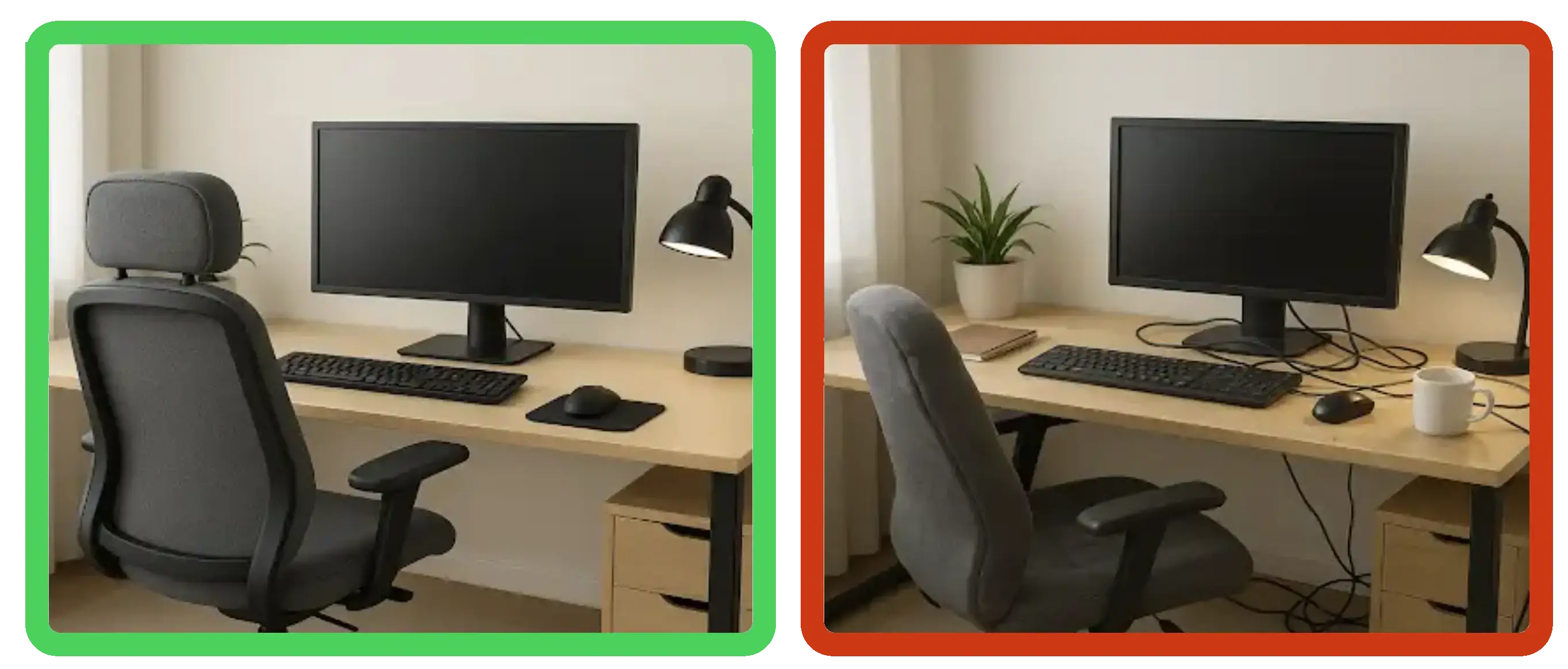
A well-designed workstation supports correct posture and reduces strain on the body. Key elements include the arrangement of the desk and chair, the positioning of the monitor, and the placement of the keyboard and mouse. Each should be adjusted to maintain comfort and reduce injury risks during prolonged computer use.
Optimal Desk and Chair Arrangement
The chair should support the natural curve of the spine, especially the lower back. Adjust the chair height so that feet rest flat on the floor or a footrest, with knees bent at 90 degrees or slightly more open. Armrests should allow shoulders to relax and elbows to stay close to the body at around a 90-degree angle.
The desk height must match the chair settings, allowing forearms to be parallel to the floor or slightly tipped when using the keyboard. A workspace that is too high or too low causes unnecessary muscle tension. The user should have enough legroom beneath the desk to move freely.
Monitor Positioning
The top of the monitor screen should be at eye level or slightly below, avoiding neck strain from looking up or down. The screen must be approximately an arm’s length away, roughly 50-70 cm, to reduce eye fatigue.
The monitor should face directly forward to prevent twisting of the neck or torso. Anti-glare screens or appropriate lighting are important to reduce reflections and screen glare. Adjusting resolution and font size can also improve readability. Display screen equipment regulations provide useful guidelines for monitor positions.
Keyboard and Mouse Placement
The keyboard should be placed so the wrists remain straight when typing, ideally on a flat surface or slightly tilted away. Wrists must not rest on sharp edges or be bent upwards or downwards.
The mouse should be positioned close to the keyboard to avoid overstretching the arm. It should fit the user's hand comfortably, allowing smooth movements without gripping too tightly.
Using wrist supports or ergonomic pads can help maintain neutral wrist posture and reduce pressure on wrists during prolonged use.
Preventing Eye Strain
Maintaining eye health while using computers requires specific actions. These include managing eye rest periods and adjusting the work environment to reduce discomfort. Display screen equipment regulations apply to anyone who uses computers for an hour or more.
20-20-20 Rule
The 20-20-20 rule helps prevent eye fatigue by encouraging regular breaks. Every 20 minutes, users should pause and look at an object 20 feet away for at least 20 seconds. This practice relaxes the eye muscles focused on close screens.
Implementing this rule reduces dryness, blurred vision, and headaches commonly associated with prolonged screen use. It is especially useful during extended work sessions to maintain focus and comfort.
Regularly following the 20-20-20 rule supports long-term eye health and reduces the risk of digital eye strain.
Lighting and Glare Reduction
Proper lighting is critical for reducing eye strain. Overly bright or dim environments can increase the effort needed to see a screen clearly. Ideally, workspaces should use soft, indirect lighting to avoid harsh contrasts.
Glare on screens worsens eye fatigue. Anti-glare filters or screen protectors can minimise reflections. Positioning screens away from windows or bright lights also helps employers follow display screen equipment regulations.
Adjusting screen brightness to match the surrounding light and using adjustable blinds or curtains improves visual comfort significantly. Neck and shoulder strain can also be reduced when lighting is correctly managed.
Breaks and Work Routine Management
Managing work routines and regular breaks is essential to maintain health and safety for computer users. Planning rest periods and incorporating brief exercises reduces physical strain and mental fatigue.
Regular breaks from sitting reduce muscle fatigue and improve circulation. It is recommended to take a short break every 20 to 30 minutes, ideally standing and moving for a few minutes.
Establishing a Break Schedule
Employers should implement a structured break schedule aligned with the Health and Safety (Display Screen Equipment) Regulations 1992. This involves interrupting computer work periodically to avoid prolonged exposure. A common approach is a 5-10 minute break every hour, allowing users to rest their eyes and stretch their muscles.
Key elements of an effective schedule include:
- Regular pause intervals, avoiding work exceeding 60 minutes without a break
- Variation in tasks to reduce repetitive strain
- Flexibility to accommodate individual needs and workload changes
Providing clear guidance on break timing helps employees maintain focus and reduces risks linked to long, uninterrupted computer use.
Microbreak Techniques
Microbreaks are short pauses, typically 20-30 seconds every 10-15 minutes, designed to relieve muscle tension and eye strain. These breaks are crucial for users who perform repetitive tasks or spend extended periods on screens.
Simple techniques include:
- Gentle stretching of hands, wrists, neck, and shoulders
- Shifting eye focus from the screen to distant objects reduces eye muscle fatigue
- Adjusting posture or changing seating position briefly
Using software reminders can support adherence to microbreaks, ensuring regularity and enhancing overall comfort during computer use.
Mental Wellbeing at the Computer
Prolonged computer use can lead to mental fatigue and stress. Effective management of work patterns and screen exposure helps maintain focus and reduces strain on mental health.
Minimising Stress and Fatigue
Workloads that involve continuous digital tasks may cause cognitive overload, increasing stress levels. Regular breaks and task variation help prevent mental exhaustion.
Employers can encourage routines that include short pauses every hour, as well as opportunities to switch between different types of work. This fosters better concentration and reduces feelings of burnout.
Creating a supportive environment also lessens psychosocial risks, such as job insecurity and isolation. Open communication and access to mental health resources are key in mitigating workplace stress related to digital work.
Creating a Safe Computer Environment
A safe computer environment minimises risks related to electricity and physical obstacles. Employers must follow the display screen equipment regulations. It involves careful planning of equipment placement and the management of cables to reduce hazards.
Electrical Safety Precautions
Proper electrical safety involves using correctly rated power supplies and avoiding overloaded sockets. All plugs and cables should be checked regularly for damage or wear to prevent electrical faults.
Devices should be connected to surge protectors to guard against power spikes. It is essential to switch off and unplug equipment before cleaning or maintenance.
Electrical sockets must be easily accessible but protected from liquid spills. Staff should receive basic training on handling electrical equipment safely.
Cable and Trip Hazard Management
Cables should be organised to avoid crossing walkways or workspaces. Using cable trays, clips, or covers helps keep wires neat and secure.
Loose cables on the floor pose a trip hazard and increase the risk of equipment damage. Regular inspections should identify and correct any hazards.
Workspaces can be improved by routing cables behind desks and using wireless options where possible. Signage or floor markings may be used to highlight potential risks.
Training and Support Resources
Providing ongoing training is essential for promoting safe computer use. Staff should receive instruction on ergonomic workstation setup, including the correct chair height, screen angle, and keyboard placement.
Training should also cover recognising early signs of musculoskeletal issues or visual strain. Employers can use videos, practical guides, and refresher sessions to reinforce these points.
Support resources may include access to occupational health services or employee assistance programs, especially for managing stress or mental health concerns related to computer use. Regular communication about best practices helps maintain a culture of safety and well-being regarding display screen equipment regulations.
Conclusion
Health and safety at the computer is essential for maintaining a productive and comfortable work environment. Employers have a legal duty to minimise risks associated with display screen equipment (DSE) use and to provide suitable guidance for employees.
Physical risks such as repetitive strain injuries, eye strain, and poor posture can be prevented through proper workstation setup and regular breaks. Training and awareness are key factors in encouraging safe computer use habits.
Employers and employees alike benefit when display screen equipment regulations are integrated into everyday computer use. This leads to fewer health problems and supports sustained work performance without unnecessary discomfort.